Base Day 1
Questions to explore subjects of your choice
Info
A general-purpose poll for structured questions on any topic (classes, interviews, quick diagnostics).
Best for
- Quick classroom checks (under 10 minutes)
- Small-group discussions with a clear prompt
- Simple training feedback / reflection
Good when
- You want a predictable, guided participant flow
- You need a fast poll that works on any phone
Not ideal when
- You need free-form live discussion (use Meeting Mode)
- You need Driving vs Restraining forces (use FFA)
Jump to
Quick start (2–3 minutes)
- 1) Click Open to share the participant link.
- 2) Ask participants to submit once each (keep prompts short).
- 3) Use Admin to monitor responses and close/end when finished.
Participant flow
Participant
- Open the link, answer the prompt(s), and submit.
- If you make a mistake, refresh before submitting (if not yet submitted).
Facilitator
- Keep the prompt visible (project it or read it aloud).
- Agree a time limit (e.g., 2–5 minutes).
Facilitator & Owner notes
Facilitator
- Use Admin to supervise and end the session cleanly.
- If the group is large, consider using Meeting Mode for freer interaction.
Owner
- Owners can add/disable admin users in Users.
- Owners can reset passwords from Users when needed.
Adding users (Owner)
Owner
- Go to Admin → Users.
- Create Facilitators for colleagues who will run sessions.
- Owners may be restricted from creating other Owners (platform safety).
Export / backup
- If your Admin page includes an Export/Download option, use it after the poll ends.
- If you don’t see export options here, it may be enabled later in the beta.
Question sets (facilitator guide)
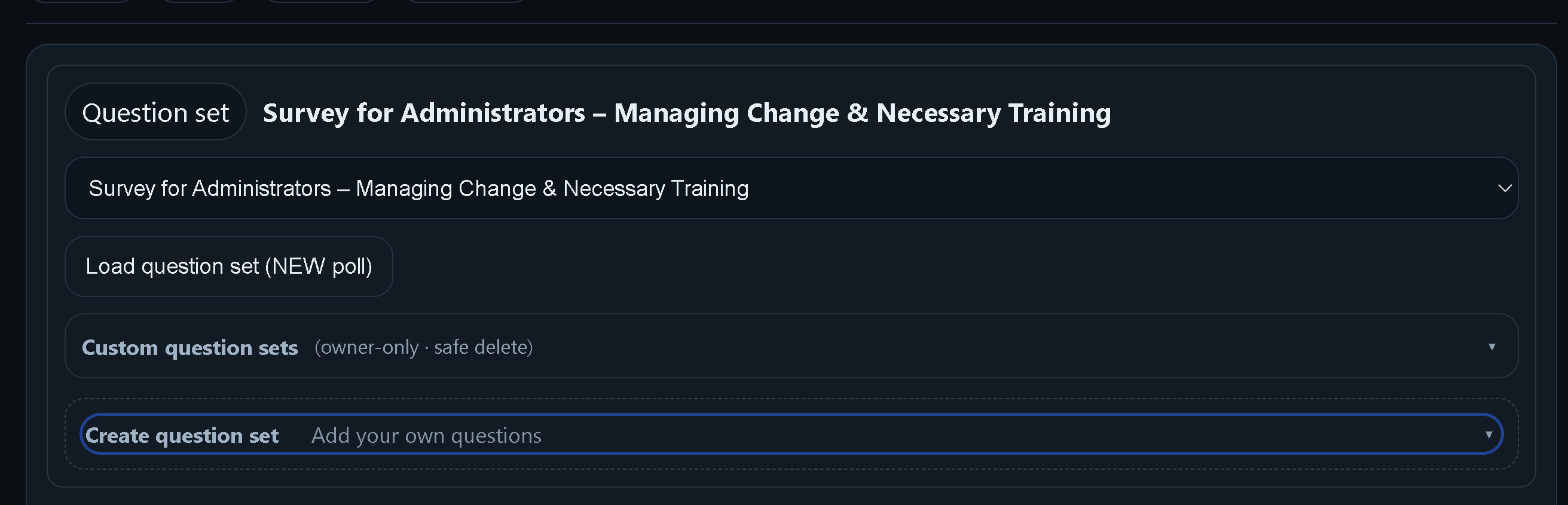
Step 1 — Select a question set
Choose a set from the dropdown, then start fresh with Load question set (NEW poll).

Step 2 — Open Custom question sets
Use the fold arrow to show or hide your custom sets.
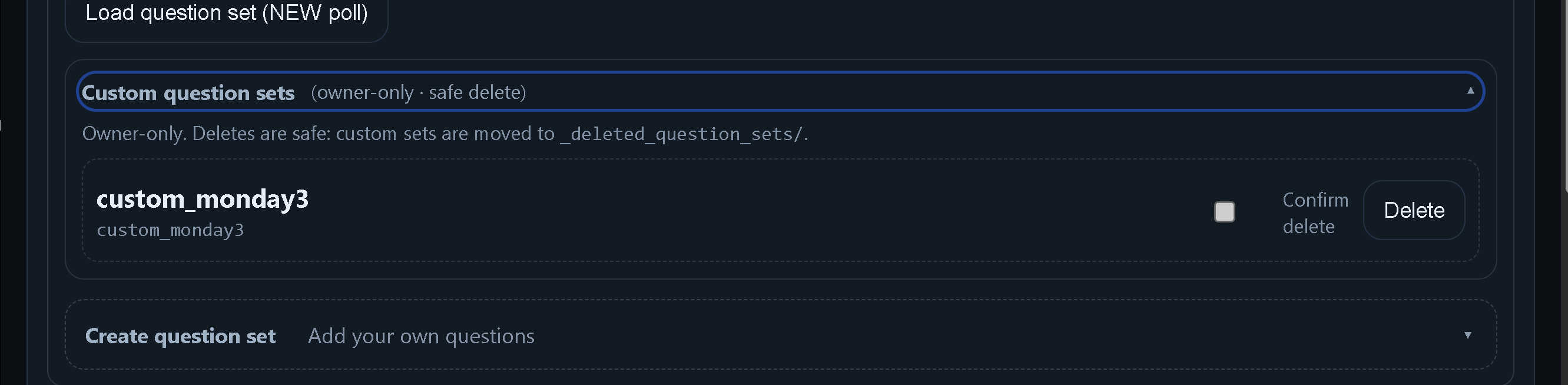
Step 3 — Manage custom sets
Review custom sets and delete safely using Confirm delete + Delete.
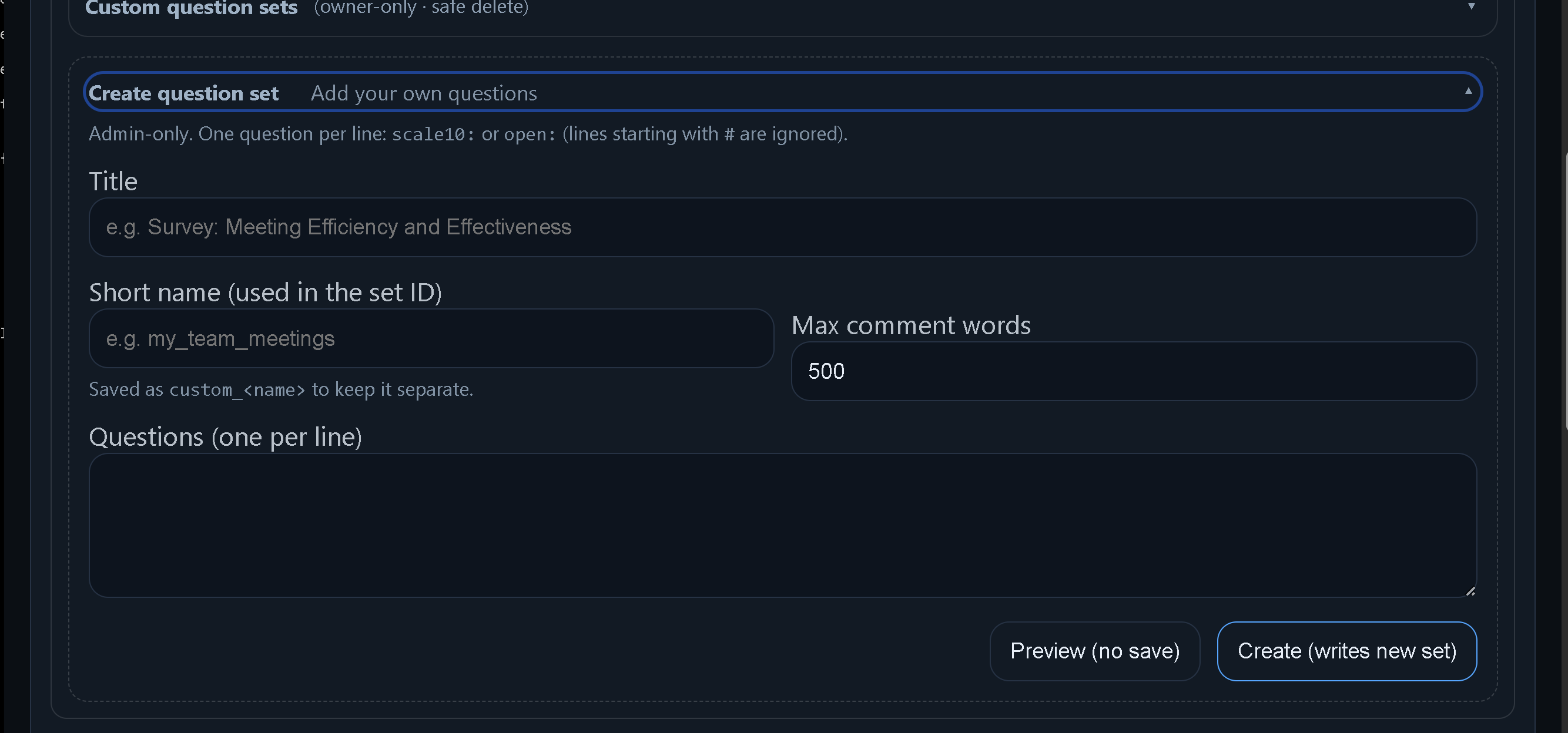
Step 4 — Start a new custom set
Enter a title, short name, max words, and one question per line.
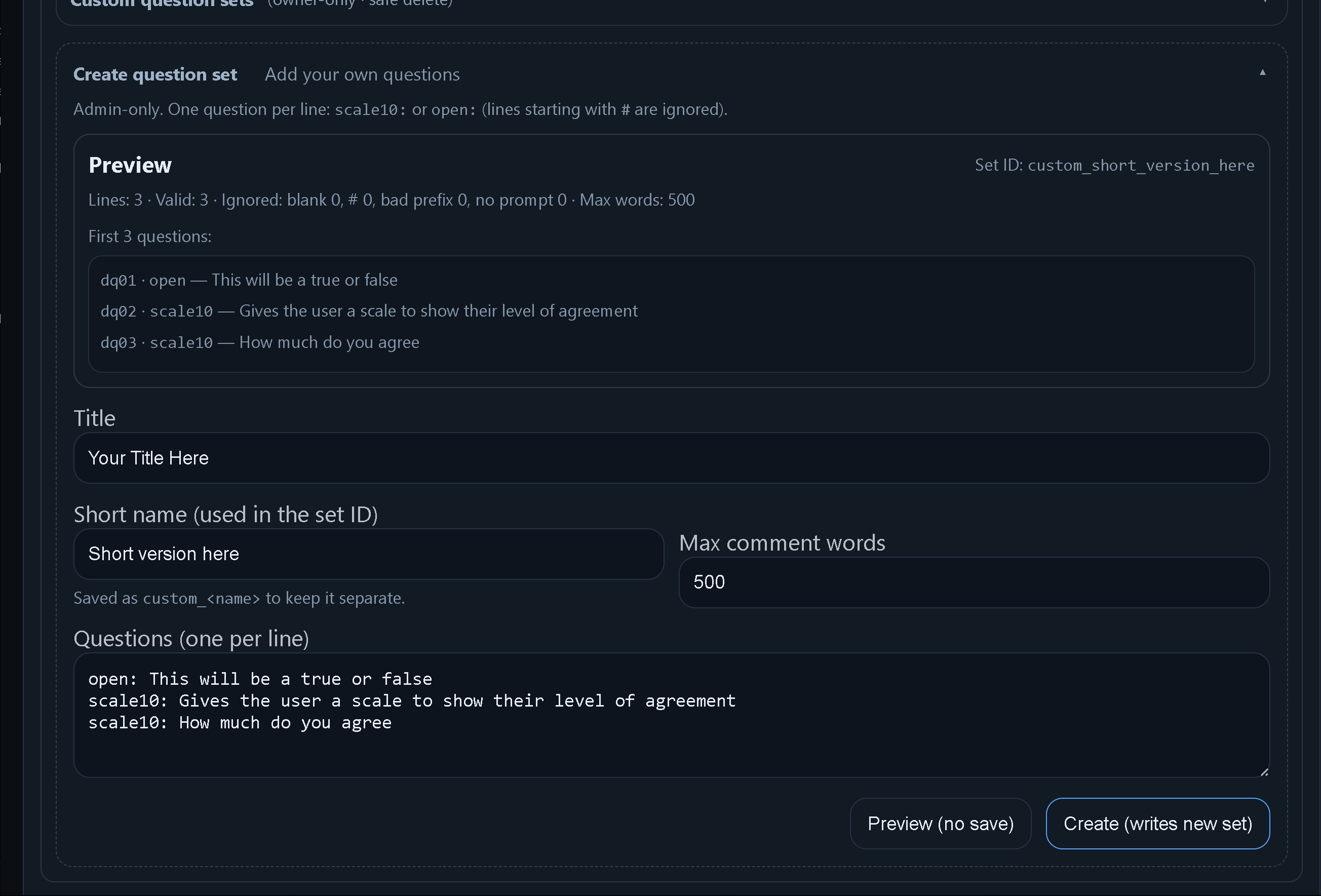
Step 5 — Preview before saving
Preview shows valid vs ignored lines and the questions that will be created.
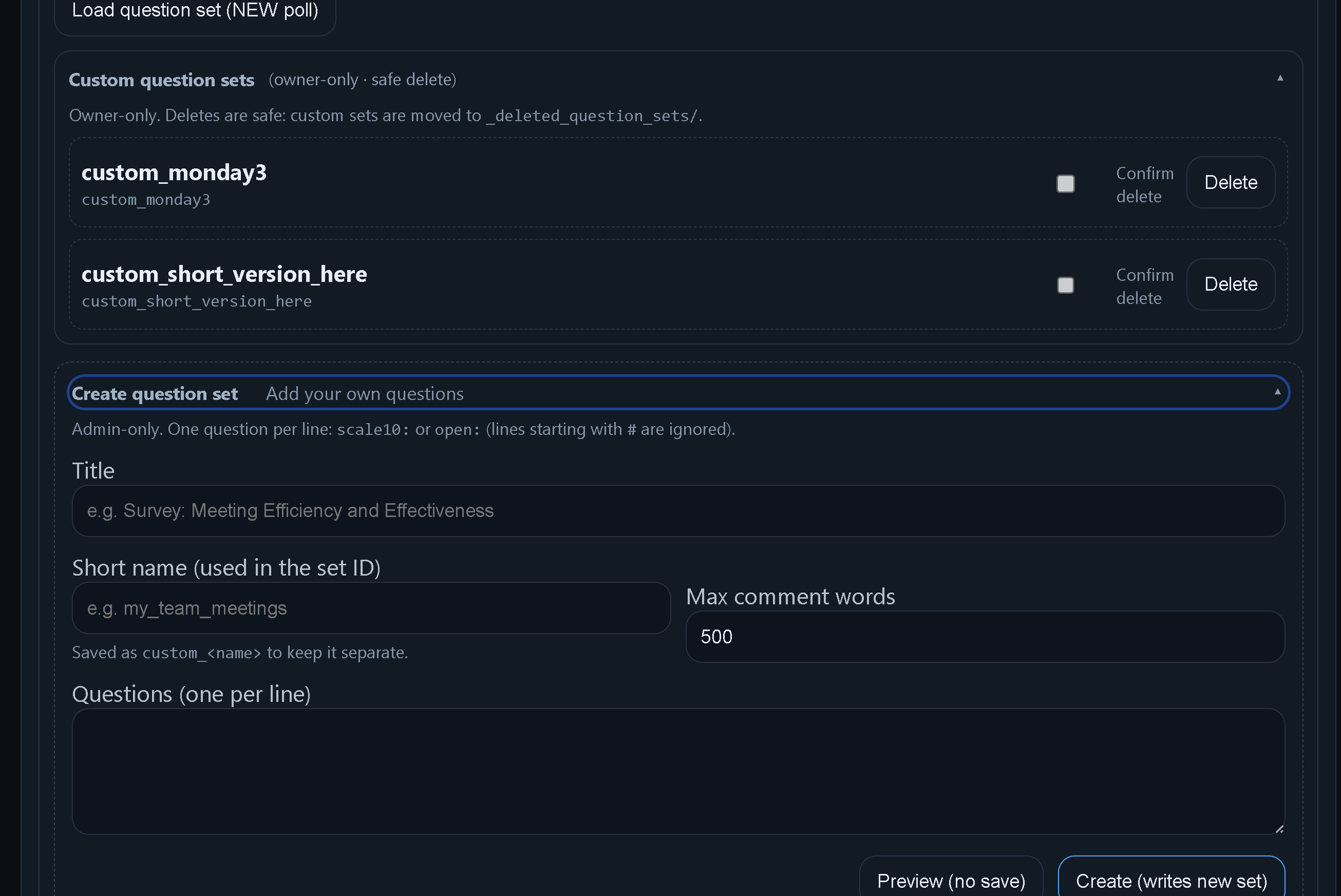
Step 6 — Create and activate
Create writes the set, activates it immediately, and clears the form.
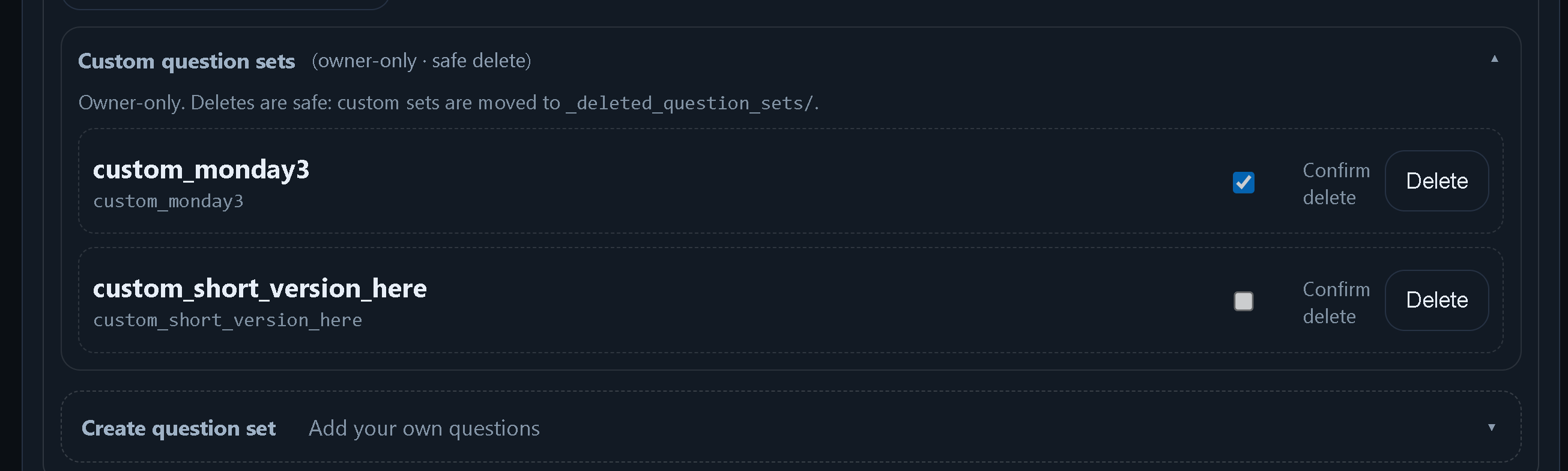
Step 7 — Safe delete (before)
Tick Confirm delete to enable safe deletion of a custom set.
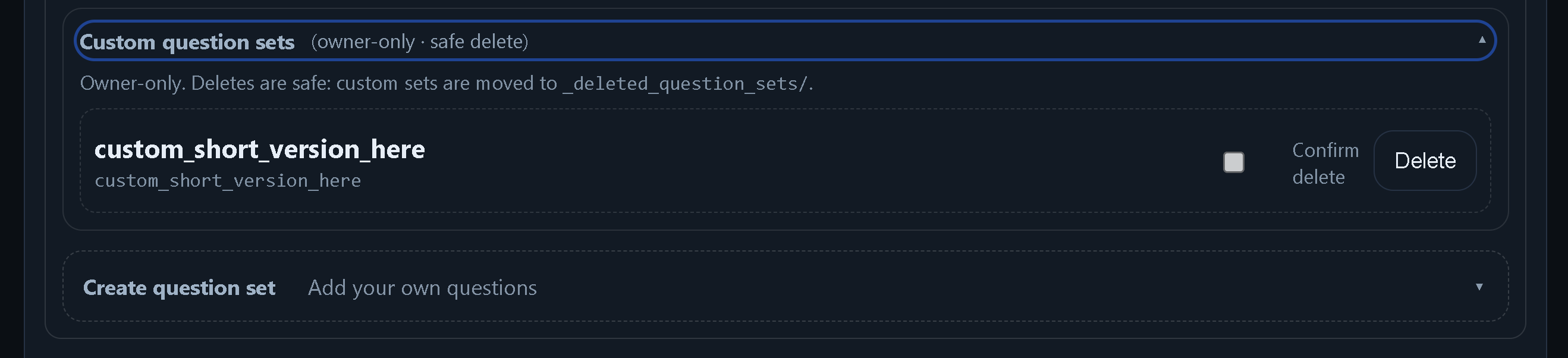
Step 8 — Safe delete (after)
After deletion, the set is removed from the list and moved to _deleted_question_sets/.
- A question set is the structure of your session. It controls what participants see and how they respond (scale 1–10 or open text).
- To start fresh with a different structure: select a set and click "Load question set (NEW poll)".
- This starts a new poll session and keeps previous sessions safely stored.
Facilitator
- Use 5–15 questions for best flow.
- Use scale10 for measurable perceptions (e.g., clarity, confidence, usefulness).
- Use open for reflection and insight.
- Avoid changing question sets mid-session; start a new poll when you switch topics.
Owner
- Create your own sets in Admin → Create question set.
- Each line must start with scale10: or open: (lines starting with # are ignored).
- Always use Preview (no save) first: it shows valid vs ignored lines, the generated IDs (dq01, dq02…), and the first questions.
- Create (writes new set) saves custom_<name>/questions.json, sets it active immediately, and starts a new poll context.
- Custom question sets can be deleted safely (owner-only): tick Confirm delete, then Delete. Deleted sets move to _deleted_question_sets/.
- You cannot delete the currently active set — switch to another set first.
Troubleshooting (quick fixes)
- Can’t access Admin/Users? Log in at /admin/login first.
- Buttons not working? Refresh the page (Ctrl+F5).
- Language: use the language dropdown at the top.